Table of Contents
Setting Up NVM, PM2, and Process Management on Linux
A production-ready foundation for running Node.js — Part 1 of 3
Don't apt install nodejs. You'll get a stale version pinned to your distro's release cycle, and switching between projects becomes a mess. NVM gives you per-user Node version management with zero system-level conflicts.
Install NVM
curl -o- https://raw.githubusercontent.com/nvm-sh/nvm/v0.40.1/install.sh | bash Reload your shell:
source ~/.bashrc Verify:
nvm --version
# 0.40.1
Install Node.js
# Install LTS
nvm install --lts

# Or a specific version
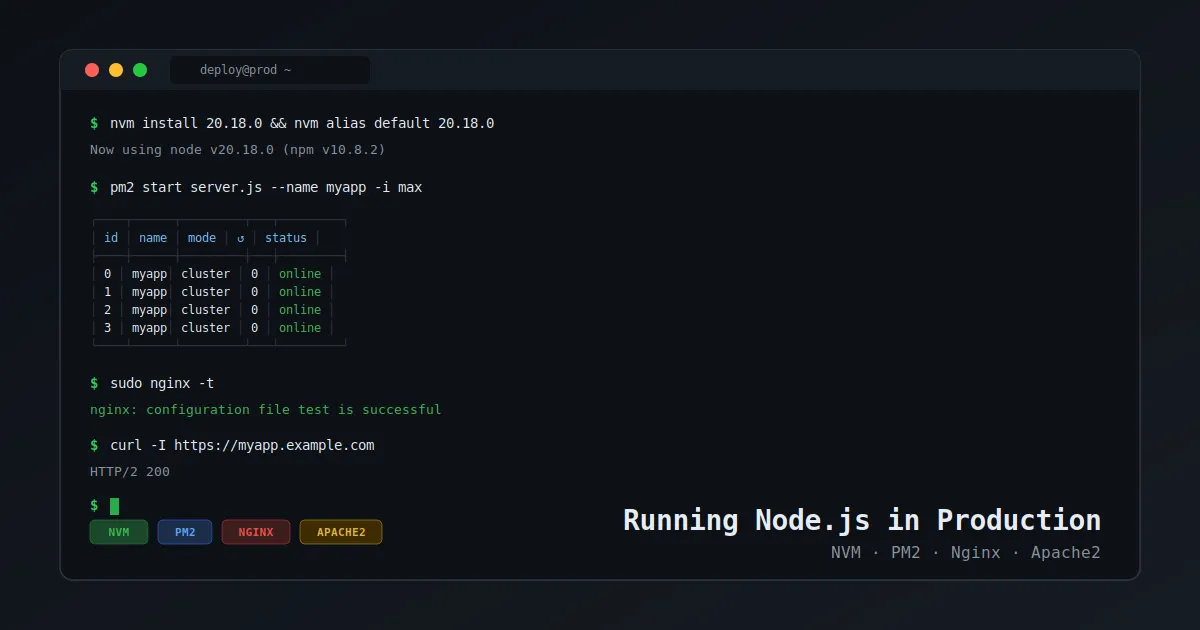
nvm install 20.18.0

# Set default — without this, new shells may pick a different version
nvm alias default 20.18.0

# Verify
node -v && npm -v
Where Does Node Live?
NVM installs per-user. Your Node binary path looks like:
/home/deploy/.nvm/versions/node/v20.18.0/bin/node This matters when PM2 needs to register a systemd service. Keep it in mind.
Install PM2
npm install -g pm2 Since we used NVM, PM2 lives at:
~/.nvm/versions/node/v20.18.0/bin/pm2 Quick sanity check:
pm2 --version PM2 Startup — Survive Reboots
This is where NVM + PM2 gets tricky. PM2's startup script needs the full path to the Node binary because systemd doesn't load your shell environment.
Generate the startup script:
pm2 startup systemd PM2 will print a command like:
sudo env PATH=$PATH:/home/deploy/.nvm/versions/node/v20.18.0/bin \
  /home/deploy/.nvm/versions/node/v20.18.0/lib/node_modules/pm2/bin/pm2 \
  startup systemd -u deploy --hp /home/deploy
Don't modify it. Copy and run that exact command.
Then save the current process list:
pm2 save PM2 will now resurrect all managed apps on reboot.
The Stale dump.pm2 Trap
If PM2 keeps resurrecting old or dead processes after a restart, it's because pm2 save wrote a file with stale data.
Fix:
pm2 kill
rm -f ~/.pm2/dump.pm2
# start your apps again (covered in Part 2)
pm2 save
Always run
pm2 saveafter any change to your process list. Forgetting this will bite you at 3 AM when the server reboots and your app doesn't come back.
PM2 Log Rotation
By default, PM2 logs grow unbounded. In production, that's a disk space incident waiting to happen.
Option A: pm2-logrotate (Recommended)
pm2 install pm2-logrotate

pm2 set pm2-logrotate:max_size 50M
pm2 set pm2-logrotate:retain 10
pm2 set pm2-logrotate:compress true
pm2 set pm2-logrotate:dateFormat YYYY-MM-DD_HH-mm-ss
pm2 set pm2-logrotate:workerInterval 30
pm2 set pm2-logrotate:rotateInterval '0 0 * * *'
Verify:
pm2 conf pm2-logrotate Option B: System logrotate
If you prefer the OS-level approach:
# /etc/logrotate.d/pm2-myapp
/home/deploy/.pm2/logs/*.log {
    daily
    missingok
    rotate 14
    compress
    delaycompress
    notifempty
    copytruncate
}
Use copytruncate — PM2 holds the file handle open, so you can't move the log file out from under it.
Quick Reference — PM2 Commands
pm2 status           # list all managed processes
pm2 logs             # tail all logs
pm2 logs myapp       # tail specific app
pm2 monit            # real-time CPU/memory dashboard
pm2 reload myapp     # zero-downtime reload (cluster mode)
pm2 restart myapp    # hard restart
pm2 stop myapp       # stop without removing
pm2 delete myapp     # stop and remove from list
pm2 save             # persist process list
pm2 resurrect        # restore saved list
What We Have So Far
- ✅ NVM installed with a pinned Node.js version
- ✅ PM2 installed globally via NVM
- ✅ Startup script registered — apps survive reboots
- ✅ Log rotation configured — no disk space surprises
Next up — Part 2: Running Your Node.js Application with PM2
Follow me for Part 2, or check out more DevOps content on khimananda.com.